> ## Documentation Index
> Fetch the complete documentation index at: https://docs.michelangelo.land/llms.txt
> Use this file to discover all available pages before exploring further.
# Your API Call
> Learn how to make API calls to Michelangelo
You can call Michelangelo’s models directly from your code using the `@ai-sdk/openai` wrapper. Here’s how to generate code using our API with just a few lines of JavaScript.
## Parameters
| PARAM | VALUE |
| ----------- | --------------------------------------------------------- |
| **baseURL** | `https://api.michelangelo.land` |
| **apiKey** | apply for an [API key](https://michelangelo.land/profile) |
## Example
```typescript nodejs theme={null}
import { createOpenAI } from "@ai-sdk/openai";
import { generateText } from "ai";
const michelangelo = createOpenAI({
baseURL: "https://api.michelangelo.land",
apiKey: "",
});
const { text } = await generateText({
model: michelangelo("michelangelo-ai/expo"),
prompt: "Create a todo list Expo application",
});
console.log(text);
```
```python python theme={null}
from ai_sdk.openai import create_openai
from ai import generate_text
michelangelo = create_openai(
base_url="https://api.michelangelo.land",
api_key=""
)
result = await generate_text(
model=michelangelo("michelangelo-ai/expo"),
prompt="Create a todo list Expo application"
)
print(result.text)
```
This snippet sends your **prompt** — in this case, “Create a todo list Expo application” — to `michelangelo-ai/expo` model. In return, you get production-ready code, instantly.
## How to Get Your API Key
To start using Michelangelo's API, you’ll need an **API key**. Here's how to get one:
1. **Log in** to your Michelangelo.land account.
2. Click the **Profile** button in the top right corner.
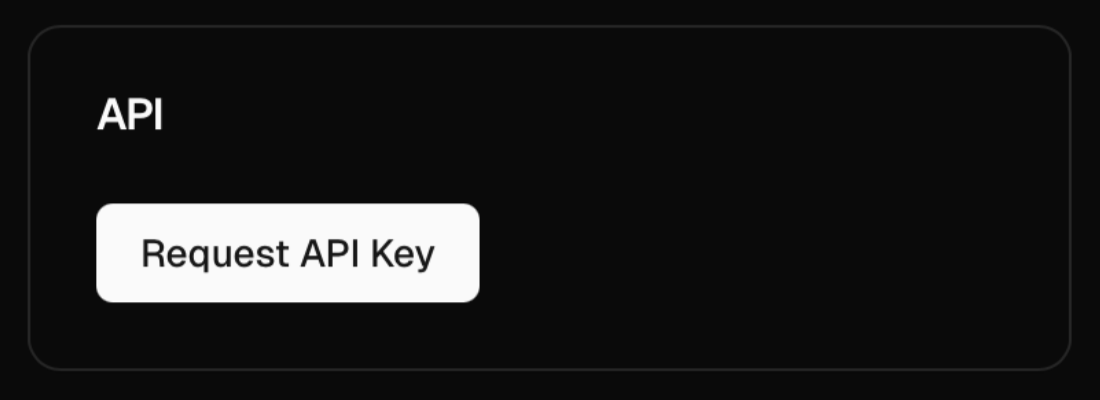
3. Find section **API** and click the **Request API Key** button.
 5. Once requested, you'll see the status update:
* **Pending**: your request is being reviewed;
* when it's **approved**: your personal API key will appear in the same box. Copy it and you're ready to build.
Keep your key secret — it gives access to your credits and usage.
## Why use Michelangelo’s API?
Michelangelo’s API lets you tap into the power of the `michelangelo-ai/expo` model — a custom AI model trained and continuously updated to understand the full Expo ecosystem.
5. Once requested, you'll see the status update:
* **Pending**: your request is being reviewed;
* when it's **approved**: your personal API key will appear in the same box. Copy it and you're ready to build.
Keep your key secret — it gives access to your credits and usage.
## Why use Michelangelo’s API?
Michelangelo’s API lets you tap into the power of the `michelangelo-ai/expo` model — a custom AI model trained and continuously updated to understand the full Expo ecosystem.
That means:
* You’re always working with the **latest versions of Expo**.
* The AI is tuned to generate **production-ready code**.
* You can integrate it into your stack and generate custom components, screens, hooks, and more with a single prompt.
Whether you're building a simple to-do app or a complex production tool, Michelangelo’s API **is like having an Expo expert on-call — 24/7, ready to ship**.